
Home Tech Land is reader-supported. When you buy through links on our site, we may earn a commission. As an Amazon Associate, we earn from qualifying purchases.
Last updated: . How we research: We build these guides from manufacturer support documentation and owner reports, and we update them when products or standards change. Learn more about Home Tech Land.
A Roku remote that stops responding, sits with its light blinking, or shows a “pair your remote” screen that never finishes can lock you out of your TV. Most of the time, the fix takes a few minutes and costs nothing.
This guide covers what to do when your Roku remote is not pairing or not working, for both simple infrared remotes and voice remotes. The steps follow Roku’s official support article on fixing remotes, updated in June 2026, and apply to Roku TVs and Roku streaming players and sticks.
Quick Answer: First check which remote you have. A simple remote (no microphone button) uses infrared and never pairs, so clear the line of sight and change the batteries. For a voice remote, unplug the Roku for 5 seconds, restart the remote, then hold the pairing button (or Back and Home) for 5 seconds until the light flashes and wait for the pairing message.
Step One: Find Out Which Roku Remote You Have
Roku makes two kinds of remotes, and they fail in different ways.
| Remote Type | How to Spot It | How It Connects | Does It Pair? |
|---|---|---|---|
| Simple remote | No microphone or magnifying glass button | Infrared (IR), so it must point at the Roku device | No |
| Voice remote | Has a microphone or magnifying glass button | Wireless signal, so most don’t need to point at the device | Yes |
If you have a simple remote, skip pairing entirely. A pairing screen on a simple remote usually means the Roku device expects a voice remote that it was paired with before.
How to Fix a Simple (Infrared) Roku Remote
- Clear the line of sight. Nothing should block the front of the Roku device. Don’t hide a streaming player behind the TV or inside a closed cabinet, and try pointing the remote from a few different angles.
- Reset the remote with fresh batteries. Take out the old batteries, press any two buttons to drain leftover power, and put in a fresh matching pair.
- Test with your phone camera. Point the remote at a phone camera and press a button. Many phone cameras show a faint light from the infrared emitter. If you see nothing with new batteries, the remote may be faulty.
- Restart the Roku device. Unplug it for 5 seconds, plug it back in, and try again from the Home screen.
How to Pair a Roku Voice Remote
Voice remotes connect over a wireless signal, so they need to be paired with the Roku device. Follow these steps in order:
- Restart the Roku device. Unplug the Roku TV or streaming player from power, wait 5 seconds, and plug it back in. Wait until the Home screen appears.
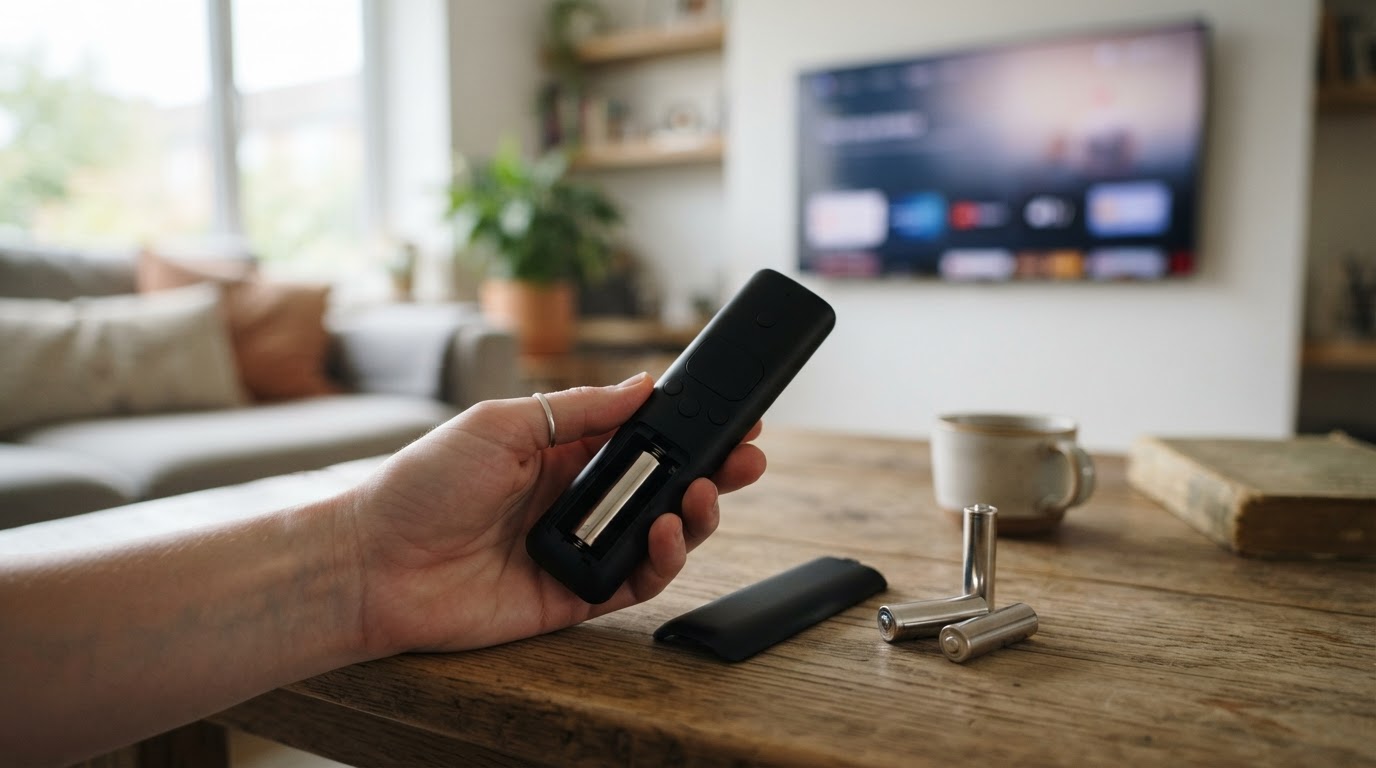
- Restart the remote. For a battery remote, take out both batteries, press any two buttons, and put the batteries back in, negative end first. For a rechargeable remote, hold the pairing button (or Back and Home together if there is no pairing button) for 20 seconds, then wait for the light to stop flashing.
- Put in fresh batteries or charge it. Use a fresh matching pair of batteries. Roku says rechargeable remotes should charge for at least 5 hours with the included cable.
- Hold the pairing button for 5 seconds. Press and hold it until the status light on the remote starts flashing. If your remote has no pairing button, hold Back and Home together for 5 seconds instead.
- Wait for the pairing message. Keep the remote close to the TV and wait for the on-screen pairing message to appear and finish.
- Set up TV control if needed. If the remote now navigates menus but volume or power doesn’t work, go to Settings > Remotes & Devices > Remotes, select your remote, and choose Set up remote for TV control.
You can check a voice remote’s battery level once it works again under Settings > Remotes & Devices > Remotes, then your remote, then About.
If the Light Flashes but the Remote Still Won’t Pair
A flashing light means the remote is in pairing mode but the Roku device isn’t completing the connection. These fixes cover the usual causes:
- Use the stick’s wireless receiver. Roku streaming sticks come with a USB power cable that includes a wireless receiver. Power the stick with that cable rather than a TV USB port and a different cable.
- Add an HDMI extender. A stick plugged straight into the back of a TV sits close to electronics that can interfere with the signal. Roku offers a free High-Definition Multimedia Interface (HDMI) extender to move the stick a few inches away.
- Disable other remotes. An old remote in a drawer can keep connecting and draining. Remove its batteries, or hold Back, Home, and Mute together for 5 seconds to turn it off, per Roku’s guidance.
- Update the software. Use the Roku mobile app to reach Settings > System > System Update > Check Now, then try pairing again.
If your Roku TV is frozen or the pairing screen loops after every restart, a reset may be the last step. Our guide on how to reset a TCL Roku TV covers soft resets, factory resets, and methods that work without a remote.
Fix Volume and Power Buttons That Don’t Work
Sometimes the remote moves through menus but can’t change the TV’s volume or turn it off. Voice remotes control the TV using infrared or HDMI Consumer Electronics Control (CEC), a feature that lets connected devices send commands to each other.
- Point the remote at the TV. If volume works when you aim at the front of the TV, the remote is using infrared for those buttons.
- Turn on HDMI-CEC. If pointing doesn’t help, enable CEC in the TV’s settings. TV makers use their own names for it, such as Anynet+ on Samsung or SIMPLINK on LG.
- Rerun TV control setup. Go to Settings > Remotes & Devices > Remotes, choose your remote, and select Set up remote for TV control.
CEC problems can also cause missing audio when a soundbar is connected. Our guide to no sound on TV through HDMI walks through the related settings.
Use the Roku Mobile App as a Backup Remote
Roku recommends its free mobile app as a stand-in while you troubleshoot. Install it on your phone, connect the phone to the same Wi-Fi network as the Roku device, and select the device in the app. You can use it to open Settings, run the pairing steps, and check for updates. One catch: Roku says a remote is required to connect a new or reset device to Wi-Fi the first time, so the app can’t rescue a device that has no network connection yet.
Common Mistakes
- Trying to pair a simple remote. Infrared remotes don’t pair. If there’s no microphone button, focus on batteries and line of sight.
- Mixing old and new batteries. Roku says to use a fresh matching pair. One weak battery can make a voice remote drop its connection.
- Skipping the device restart. Roku’s steps restart the TV or player before pairing. Unplugging for 5 seconds clears a stuck wireless connection.
- Ignoring a hot remote. If the remote feels hot, stop using it, don’t remove the batteries while hot, and set it on a hard, non-flammable surface to cool. Contact Roku support if it doesn’t cool down.
When to Replace the Remote
If the mobile app controls your Roku normally but the remote still won’t pair after fresh batteries and the full steps above, the remote has most likely failed. Not every Roku remote works with every Roku device, so check Roku’s compatibility notes for your model before you buy a replacement. If your Roku device itself is aging, our Black Friday Roku deals roundup lists current Roku TVs and streaming sticks.
Recommended Gear
Overall pick: the Roku Voice Remote Pro, because it is rechargeable, so dead or mismatched batteries (one of the most common causes of pairing trouble) stop being an issue.
| Gear | Why It Helps | Price Range | Link |
|---|---|---|---|
| Roku Voice Remote Pro | Rechargeable voice remote with hands-free voice, per Roku’s specs | Under $50 | Check price on Amazon |
| Roku Voice Remote (replacement) | Battery-powered replacement voice remote for Roku TVs and players | Under $50 | Check price on Amazon |
| AAA batteries, multipack | Fresh matching pairs for battery-powered Roku remotes | Under $50 | Check price on Amazon |
| HDMI extender cable | Moves a streaming stick away from the TV to reduce interference | Under $50 | Check price on Amazon |
Shopping for a new Roku TV instead? Our reviews of the Onn 50-inch Roku TV and the TCL 65S41 cover two budget options, and our smart TV vs Roku TV comparison explains how the platforms differ.
Frequently Asked Questions
Where is the pairing button on a Roku remote?
On most battery-powered Roku voice remotes, the pairing button is a small button inside the battery compartment. If you can’t find one, hold Back and Home together instead, which Roku lists as the alternative. Simple infrared remotes have no pairing button because they never pair.
Why is my Roku remote light flashing but not pairing?
A flashing light means the remote is in pairing mode but the Roku device hasn’t connected. Restart the Roku device, keep the remote close, and try again. On a streaming stick, use the wireless receiver on the USB power cable and an HDMI extender to cut interference.
Can I pair a Roku remote without the pairing button?
Yes. Roku says to press and hold Back and Home together for 5 seconds until the light flashes. The same combination held for 20 seconds restarts a rechargeable remote.
How do I use my Roku without a remote?
Install the free Roku mobile app on your phone, connect it to the same Wi-Fi network as the Roku device, and use it as a remote. Roku notes that you need a physical remote to connect a brand-new device to Wi-Fi the first time.
Why does my Roku remote control menus but not the TV volume?
Volume and power use either infrared or HDMI-CEC. Point the remote at the TV to test infrared. If that doesn’t help, turn on HDMI-CEC in the TV’s settings and run Set up remote for TV control again.
Do I need a new remote if pairing keeps failing?
Try the full restart and pairing steps, a different set of batteries, and the mobile app first. If the mobile app works but the remote still won’t pair, the remote is likely faulty and a replacement is the fix.
Related Guides
- How to Reset a TCL Roku TV (Soft Reset, Factory Reset, and No-Remote Methods)
- Black Friday Roku Deals 2026: Roku TVs and Streaming Sticks
- Which Is Better, a Smart TV or a Roku TV? Platforms Compared
- Fox Now Owns Roku: What the Deal Means for Roku TV and Stick Owners
- No Sound on TV Through HDMI? How to Fix It
Get Our Weekly Tech Tips
Sign up for one short email each week with practical home tech setup guides, buying advice, and deal alerts.