
Home Tech Land is reader-supported. When you buy through links on our site, we may earn a commission. As an Amazon Associate, we earn from qualifying purchases.
Last updated: . How we research: We build these guides from manufacturer support documentation and owner reports, and we update them when menus or apps change. Learn more about Home Tech Land.
To reset a TCL Roku TV, press Home on the remote and go to Settings, System, Advanced system settings, Factory reset, then select Factory reset everything and enter the code on the screen. If you only need to fix a freeze or a slow menu, a soft reset (Settings, System, Power, System restart) is faster and keeps your apps and Wi-Fi. This guide covers both, plus how to reset a TCL TV with no remote or no working menu, using the steps in TCL’s and Roku’s own support pages.
Quick verdict: Start with a system restart or a 10-second unplug, which fixes most problems without erasing anything. Use a factory reset only when you’re selling the TV, giving it away, or fighting a problem a restart won’t fix. If your remote is lost or dead, the pinhole RESET button on the back of the TV or the free Roku mobile app gets you there. Need a replacement? Check Roku TV remotes on Amazon.
Key takeaways
- Soft reset: Settings, System, Power, System restart reboots a TCL Roku TV without erasing apps, settings, or your Roku account, according to Roku.
- Factory reset: Settings, System, Advanced system settings, Factory reset, Factory reset everything wipes the TV and asks you to enter a code that changes each time, according to TCL.
- No remote: Hold the pinhole RESET button near the input ports for about 12 seconds with the TV on, according to TCL.
- Last resort: Holding RESET for at least 20 seconds opens Recovery Mode, which reinstalls the Roku software over Wi-Fi.
Before you reset: check which TCL TV you have
TCL sells TVs with two main operating systems in the US, and the steps differ. A TCL Roku TV shows the purple Roku home screen and ships with a Roku remote; TCL still sells Roku models in 2026, such as the S55LR series at Best Buy. Most of TCL’s Mini light-emitting diode (Mini LED) and quantum dot LED (QLED) models, such as the TCL Q5, run Google TV instead, and the Google TV steps appear near the end of this guide. Our smart TV vs. Roku TV guide explains the difference.
Before a factory reset, gather your Roku account email and password, your Wi-Fi password, your streaming app logins, and your parental control personal identification number (PIN) if you set one. Roku’s factory reset article says to wait on the reset until you have that information.
How to soft reset (restart) a TCL Roku TV
A soft reset clears temporary glitches but keeps everything you’ve set up. Try it first for freezing, buffering, or a slow home screen.
Method 1: System restart from the menu
- Press Home on your Roku remote.
- Scroll to and select Settings.
- Select System.
- Select Power. If your TV has no Power submenu, skip this step.
- Select System restart.
Those steps come from Roku’s system restart article. Pressing the power button doesn’t do the same thing, according to Roku.
Method 2: Unplug it
If the TV is frozen, unplug the power cord, wait at least 10 seconds, and plug it back in, according to Roku.
Method 3: The remote shortcut
Tom’s Guide describes a shortcut that forces a restart: press Home five times, Up once, Rewind twice, and Fast Forward twice. Roku doesn’t document it, so fall back on the menu if it fails.
How to factory reset a TCL Roku TV with the remote
A factory reset erases your stored personal data, settings, network connections, Roku data, and menu preferences. These steps come from TCL’s factory reset guide:
- Press Home on your remote to open the main screen.
- Scroll down and select Settings.
- Press the right arrow, then select System.
- Press the right arrow, then select Advanced system settings.
- Press the right arrow, then select Factory reset.
- Select Factory reset everything.
- Enter the code shown on the screen and select OK. TCL generates a different code each time.
The TV then runs Guided Setup. Reconnect to Wi-Fi, link your Roku account, reinstall your apps, and rerun the antenna channel scan if you use one.
Smaller resets in the same menu
- Picture and sound only: Many TCL Roku TVs also list Reset TV audio/video settings under Factory reset. Highlight it and press Play/Pause three times to confirm, according to TCL’s 43S425 user guide.
- Wi-Fi only: Go to Settings, System, Advanced system settings, Network connection reset, and select Reset connection, according to Roku’s Wi-Fi help article. Then reconnect to your network.
How to reset a TCL Roku TV without a remote
Use the pinhole RESET button
If the remote is lost or the menus won’t open, TCL’s forced reset guide describes a forced factory reset:
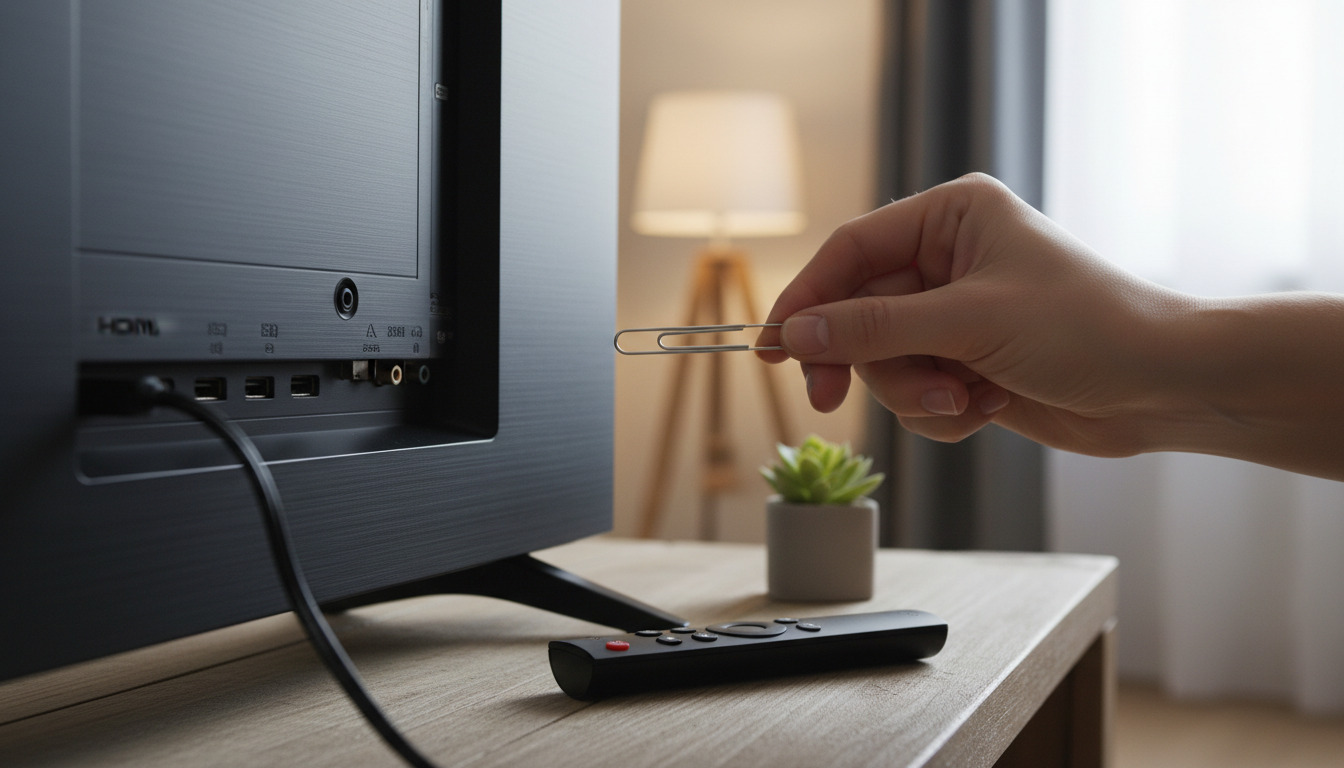
- Find the recessed RESET button on the TV’s connector panel, near the High-Definition Multimedia Interface (HDMI), Universal Serial Bus (USB), and antenna ports. It’s a small pinhole, not the power button.
- With the TV plugged in and on, press and hold RESET with a straightened paper clip or a ballpoint pen for about 12 seconds. About 10 seconds is enough on some models.
- Release it when the reset starts or the indicator light changes. The TV turns off and restarts.
- Turn the TV on if needed and complete Guided Setup.
If nothing happens, TCL suggests unplugging the TV for 60 seconds and trying again. Roku’s own Select, Plus, and Pro Series TVs use a Power plus Find My Remote hold instead, according to Roku’s factory reset article, but that doesn’t apply to TCL models.
Use the Roku mobile app as a remote
The free Roku app for iPhone and Android can control a TCL Roku TV, so you can use the menu steps above. Install it, sign in, connect to the TV, and select the Remote icon, according to Roku’s mobile app guide. The TV must already be online, and Engadget adds that your phone needs to be on the same Wi-Fi network.
Fix the remote instead
If only the remote stopped working, re-pair it before you reset the TV: restart the TV, then hold the remote’s pairing button (or Back and Home together) for 5 seconds until the light flashes, according to Roku’s remote troubleshooting article. Simple infrared remotes don’t pair, so just replace the batteries.
Last resort: Recovery Mode
If your TCL Roku TV is stuck on the logo, keeps restarting, or freezes during startup, Recovery Mode reinstalls the Roku software. TCL’s Recovery Mode guide gives these steps:
- Unplug the TV, wait at least 60 seconds, plug it back in, and turn it on. Continue only if it’s still stuck.
- With the TV on, press and hold the RESET button for at least 20 seconds. Release it when the TV restarts and shows the Recovery Mode screen.
- Follow the prompts to connect to Wi-Fi and install the latest Roku software.
- Don’t unplug the TV or press RESET again while it restores. It restarts on its own.
If the Recovery Mode screen doesn’t appear within about 30 seconds, TCL says your model may not support it or may need service.
How to factory reset a TCL Google TV
If your TCL TV runs Google TV, open Settings from the home screen, select System, then About, then Factory reset, according to TCL’s Google TV reset page. If the TV is stuck on the logo, TCL’s Google TV recovery guide describes Recovery Mode: unplug the TV, hold the physical Power button while you plug it back in, and release it when the recovery screen appears. Select Wipe data/factory reset, using the Volume buttons to move and Power to select.
Troubleshooting after a reset
- Antenna channels are missing: Run the antenna channel scan again during or after setup.
- The reset didn’t fix it: If the TV still won’t start, has no picture, or loops back into Recovery Mode, contact TCL Support for a repair.
- Picture looks off: A reset restores motion smoothing and other factory picture defaults. Our guide to turning off motion smoothing shows where TCL Roku TVs hide Action Smoothing.
Compare TCL Roku TV accessories and replacements on Amazon
Amazon is our main affiliate partner, and it carries replacement Roku remotes, streaming players, and new TCL Roku TVs in one place. Prices change often.
| Product | What it helps with | Best for | Shop |
|---|---|---|---|
| Roku Voice Remote Pro | Rechargeable replacement remote with hands-free voice and a lost-remote finder | Replacing a lost or broken TCL Roku TV remote | Check price |
| Roku simple replacement remote | Basic infrared remote for Roku TVs | A cheap backup remote | Check price |
| TCL S Series Roku TV (2026) | Current TCL TV with the same Roku menus covered here | Replacing a TV that won’t recover | Check price |
| Roku Streaming Stick 4K | Adds a fresh Roku player to any HDMI port | Older TCL Roku TVs that feel slow after a reset | Check price |
| Ultra High Speed HDMI cable | Rules out a bad cable when an input shows no signal | Consoles and streaming boxes | Check price |
If a reset doesn’t save your TV and you’re shopping for a new one, our TCL vs. Hisense comparison and TCL 65S555 review cover TCL’s strengths and weaknesses, and our TCL 65S41 review looks at a budget TCL Roku TV.
Frequently asked questions
How do you reset a TCL TV without the remote?
You can reset a TCL Roku TV without the remote by holding the pinhole RESET button on the back panel for about 12 seconds with the TV on. If the TV is still online, the free Roku mobile app can also act as a remote so you can use the Settings menu instead.
Does a factory reset delete everything on a TCL Roku TV?
Yes, a factory reset deletes your settings, network connections, Roku account link, and installed streaming apps on a TCL Roku TV. Your Roku account itself and any paid subscriptions stay intact, so you can sign back in after Guided Setup.
How long do you hold the reset button on a TCL Roku TV?
Hold the reset button on a TCL Roku TV for about 12 seconds to start a factory reset. TCL says about 10 seconds works on some models, and holding it for at least 20 seconds opens Recovery Mode instead, which reinstalls the Roku software.
What is the difference between a soft reset and a factory reset on a TCL TV?
A soft reset on a TCL TV restarts the software and keeps your apps, account, and Wi-Fi, while a factory reset erases everything and returns the TV to its out-of-box state. Always try the soft reset first, since it fixes most freezes and slow menus.
Final verdict
To reset a TCL Roku TV, try a system restart or a 10-second unplug first, then use Settings, System, Advanced system settings, Factory reset, Factory reset everything when you need a clean slate. Without a remote, hold the pinhole RESET button for about 12 seconds or use the Roku mobile app, and save the 20-second Recovery Mode hold for a TV stuck on the logo. If your remote is the real problem, check the Roku Voice Remote Pro price on Amazon, or browse TCL Roku TVs on Amazon.