
Home Tech Land is reader supported. When you buy through links on our site, we may earn an affiliate commission at no extra cost to you.
Last updated: November 2026
How we research: we follow Amazon’s official Fire TV support pages for every button combination and menu path below, and we compare manufacturer specs with published lab measurements and owner reports. We have not tested these remotes hands on.
If your Fire TV Stick remote is not working, start with fresh batteries, move within 10 feet of the stick, and restart the Fire TV by holding Select and Play/Pause for about five seconds. If that fails, hold the Home button for 10 seconds to re-pair, and as a last resort reset the remote by holding Left, Menu, and Back together for 12 seconds. With a lot of new sticks coming out of holiday boxes this season, here are the 10 fixes Amazon itself recommends, in the order that solves most problems fastest.
Key takeaways
- Weak or wrong batteries cause more remote problems than anything else. Amazon recommends AAA alkaline batteries.
- Keep the remote within 10 feet (3 meters) of the Fire TV while pairing.
- Holding Home for about 10 seconds puts the remote into pairing mode.
- The full reset combo is Left, Menu, and Back held together for 12 seconds, followed by a power cycle.
- If only volume, power, or mute fail, the problem is usually the Equipment Control setting, not the remote.
- The free Fire TV app on your phone works as a backup remote and can pair a new one.
1. Replace or reseat the batteries
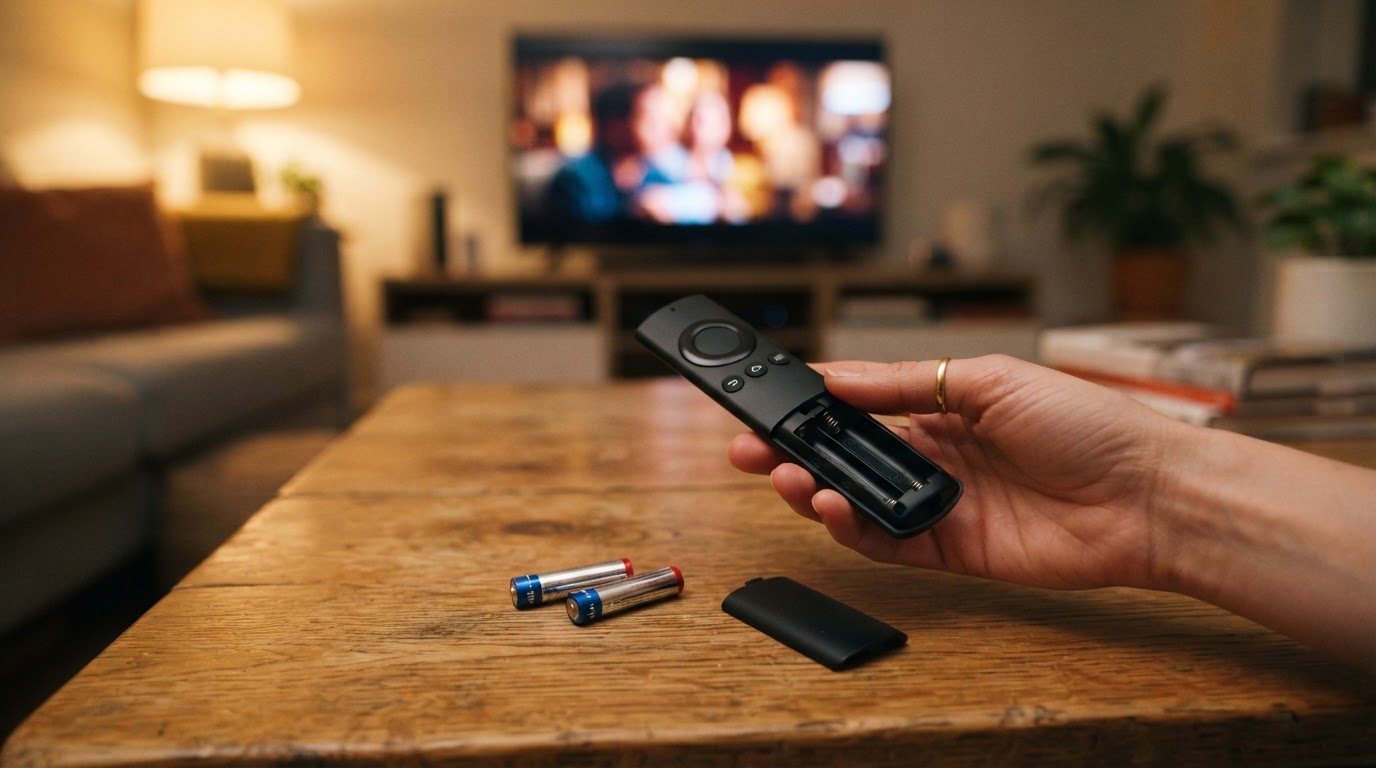
Start here, even if the batteries are new. Amazon’s troubleshooting page lists replacing the batteries as the first step and recommends AAA alkaline cells. Its setup guide for the Alexa Voice Remote (2024 Release) also accepts 1.5 volt alkaline or 1.2 volt nickel metal hydride (NiMH) rechargeable AAA batteries. Remove the cover, take the batteries out, wait about 30 seconds, and put them back with the correct orientation. A remote that responds slowly or only from very close range is a classic sign of low power.
2. Move closer to the Fire TV
Amazon says to keep the remote within 10 feet (3 meters) of your Fire TV device. Fire TV remotes talk to the stick over Bluetooth, so a stick tucked behind a wall mounted TV, or plugged into a crowded HDMI (High-Definition Multimedia Interface) port, can weaken the connection. If you use an HDMI hub, Amazon recommends plugging the Fire TV directly into the TV instead.
3. Restart the Fire TV
Amazon’s support page for a frozen or unresponsive Fire TV gives two ways to restart:
- With the remote: press and hold Select and Play/Pause together for about 5 seconds.
- Without the remote: unplug the power cord from the Fire TV, wait 60 seconds, and plug it back in.
Amazon also recommends using the power cable and adapter that came in the box, and checking that your TV is set to the HDMI input the Fire TV uses. A stick that is not getting enough power can behave like a broken remote.
4. Re-pair the remote with the Home button
If the remote has power but the stick ignores it, the pairing has likely dropped. According to Amazon’s “Can’t Pair Your Fire TV Remote” page:
- Hold the remote within 10 feet of the Fire TV.
- Press and hold Home until the prompt “Press Play/Pause to start” appears on screen, which takes about 10 seconds.
- If nothing happens, remove the batteries, wait 30 seconds, reinsert them, and press and hold Home again.
For a brand new stick, Amazon’s setup guide says to plug in the Fire TV, wait until “Cannot detect your remote” appears, insert the batteries, and hold Home for 10 seconds if the remote does not pair on its own.
5. Pair through Settings (or the Fire TV app)
If you have a second working remote, or you are adding a replacement, pair it from the menu. Amazon’s path is Settings > Controllers & Bluetooth Devices > Amazon Fire TV Remotes > Add New Remote. The new remote appears in the list once it pairs.
No working remote at all? Install the free Fire TV app from the Apple App Store or Google Play, connect your phone to the same Wi-Fi network as the Fire TV, and sign in with your Amazon account. You can then use the app to reach the same Settings path and pair your physical remote. If you are still setting up a new stick, our guide to activating YouTube on Fire TV walks through the next steps once the remote works.
6. Remove an extra controller
Amazon notes that a Fire TV can only hold seven paired controllers. If you have collected old remotes, game controllers, and Bluetooth accessories over the years, remove one from Settings > Controllers & Bluetooth Devices before pairing another remote.
7. Run the remote’s troubleshooting mode
Newer Fire TV remotes with a light-emitting diode (LED) indicator have a built-in troubleshooting mode. To check, press the Alexa button. If the light at the top of the remote flashes, your remote supports it.
- Press and hold Rewind and Right together for 3 seconds.
- Press Menu. The LED turns green.
- Press any button and read the color:
- Slow red blinking: low battery. Replace the batteries.
- Fast red blinking: a remote problem. Reset the remote (fix 9).
- Orange: not paired. Restart the Fire TV, wait for “Cannot detect your remote,” then hold Home for 10 seconds.
- White: make sure the Fire TV is on, then restart it.
- Blue: the remote is fine. Restart the Fire TV.
To exit, hold Play/Pause and Up for 3 seconds, press Menu, then remove and reinsert the batteries.
8. Fix volume, power, and mute buttons
If navigation works but the TV controls do not, the remote is probably set up for the wrong TV brand. Amazon’s fix is Settings > Equipment Control > Manage Equipment > TV. Under Change TV, confirm the brand matches your set, and if it does not, select Change TV and follow the prompts. Amazon notes these steps do not apply to Fire TV smart TVs, which control their own volume.
9. Reset the remote (how to reset a Fire Stick remote)
A full reset clears the remote’s pairing and settings. Amazon’s sequence for most Fire TV remotes:
- Unplug the Fire TV from power and wait 60 seconds.
- Press and hold Left, Menu, and Back together for 12 seconds.
- Release the buttons and wait 5 seconds.
- Remove the batteries from the remote.
- Plug the Fire TV back in and wait for the on-screen message that it cannot detect a remote.
- Reinsert the batteries and press Home.
If the LED blinks blue, the remote has paired. If not, hold Home for 10 seconds. For the Alexa Voice Remote (1st Generation), Amazon uses the same steps but holds only Left and Menu for 12 seconds.
The Basic Edition remote has its own sequence: hold Home and press Menu three times, release Home, press Menu nine times, remove the batteries, unplug the Fire TV for 60 seconds, then reinsert the batteries, plug the Fire TV in, and hold Home for 40 seconds once the Home screen appears.
Amazon released a redesigned Fire TV Remote this fall alongside the Vega operating system (OS) Fire TV Stick 4K, with a different button layout. If a combo above does not match the buttons on your remote, check Amazon’s Fire TV Remotes help page for your model. Our Vega OS sideloading guide covers other ways the new platform differs.
10. Replace the remote
If the troubleshooting LED keeps blinking fast red after a reset, or the remote has visible damage, a replacement is the cheapest fix. Amazon sells the remote on its own, and the new Fire TV Remote is sold as a standalone upgrade for existing Fire TV devices. Pair it with the Settings path in fix 5.
Upgrade options if your stick is the problem
If the stick itself freezes often, a newer device may be the better buy. See our Fire TV Stick 4K Max review, our Fire TV Cube (3rd Gen) review, our Fire TV Stick 4K vs 4K Select vs 4K Max comparison, and our roundup of Black Friday streaming device deals.
| Product | Best for | Key specs | Price Range | Buy |
|---|---|---|---|---|
| Fire TV Stick 4K Max (2nd Gen) | Fastest Fire TV stick | Wi-Fi 6E, 16GB storage, 2GB memory, Dolby Vision, Alexa Voice Remote Enhanced | $50 to $100 | Check price on Amazon |
| Fire TV Stick 4K (2026) | New Vega OS stick | Wi-Fi 6, Bluetooth 5.3, 8GB storage, HDR10+, new Fire TV Remote | $50 to $100 | Check price on Amazon |
| Fire TV Cube (3rd Gen) | Hands-free Alexa | Wi-Fi 6E, Ethernet port, HDMI input, Dolby Vision | $100 to $200 | Check price on Amazon |
| Alexa Voice Remote / Fire TV Remote | Replacing a dead remote | AAA batteries, TV power and volume controls | Under $50 | Check price on Amazon |
| Roku Streaming Stick Plus | Roku alternative | 4K, HDR10+, Wi-Fi 5, TV USB power | Under $50 | Check price on Amazon |
| Google TV Streamer | Google TV alternative | 4K, Dolby Vision, Ethernet, Thread border router | $50 to $100 | Check price on Amazon |
FAQ
Why is my Fire Stick remote not pairing?
The most common causes are weak batteries, too much distance, or a full controller list. Put in fresh AAA alkaline batteries, stay within 10 feet, and hold Home for about 10 seconds. If seven controllers are already paired, remove one under Settings > Controllers & Bluetooth Devices.
How do I reset my Fire Stick remote?
Unplug the Fire TV for 60 seconds, hold Left, Menu, and Back together for 12 seconds, wait 5 seconds, and remove the batteries. Plug the Fire TV back in, reinsert the batteries, and press Home.
Can I control my Fire TV without a remote?
Yes. The free Fire TV app for iPhone and Android works as a remote when your phone is on the same Wi-Fi network as the Fire TV and signed in to your Amazon account.
Why do the volume buttons not work on my Fire TV remote?
The remote is probably set to the wrong TV brand. Go to Settings > Equipment Control > Manage Equipment > TV and use Change TV to pick the correct brand.
What does the orange light on my Fire TV remote mean?
In troubleshooting mode, orange means the remote is not paired. Restart the Fire TV, wait for “Cannot detect your remote,” and hold Home for 10 seconds.