
Home Tech Land is reader-supported. When you buy through links on our site, we may earn a commission. As an Amazon Associate, we earn from qualifying purchases.
Last updated: . How we research: We build these guides from manufacturer support documentation and owner reports, and we update them when menus or apps change. Learn more about Home Tech Land.
You activate YouTube on Fire TV through the free YouTube app, not through Amazon Prime. If you searched for how to activate YouTube on Amazon Prime, here’s the key fact: YouTube isn’t part of Prime or Prime Video. You watch it through the free YouTube app on an Amazon Fire TV device, such as a Fire TV Stick, Fire TV Cube, or a TV with Fire TV built in. This guide shows you how to activate YouTube on Fire TV step by step, using the current sign-in methods from Google’s own help pages, plus fixes for codes that won’t work.
Quick answer: Open the YouTube app on your Fire TV, select Sign in, then scan the Quick Response (QR) code with your phone or go to yt.be/activate (youtube.com/activate leads to the same page) on any phone, tablet, or computer. Sign in to your Google account, type the code shown on your TV, and tap Allow. Need a faster device first? Check the Fire TV Stick 4K Max price on Amazon.
Key takeaways
- What you need: A Fire TV device connected to the internet, a Google account, and a phone, tablet, or computer if you use the code method.
- Activation address: Scan the QR code or go to yt.be/activate (youtube.com/activate leads to the same page) and type the code shown on your TV.
- Cost: The YouTube app is free with ads, and Amazon Prime doesn’t include YouTube Premium.
- YouTube TV: Google’s paid live TV service uses a separate app and a different address, tv.youtube.com/start.
- If the code fails: Check the code, connect your phone to the same Wi-Fi network as your Fire TV, restart the device, and request a new code.
What you need before you start
- A Fire TV device (any Fire TV Stick, Fire TV Cube, or Fire TV smart TV) connected to the internet
- A Google account (the same one you use for Gmail or YouTube on your phone)
- A phone, tablet, or computer with a web browser, if you use the code method
- Your Fire TV remote
YouTube is free to use with ads. A YouTube Premium membership removes ads, but Amazon Prime doesn’t include it, and you can’t add YouTube as a Prime Video channel.
Step 1: Install the YouTube app on Fire TV
Many Fire TV devices come with YouTube already installed. Check your home screen or your apps list first. If you don’t see it, install it:
- Press the Home button on your remote.
- Go to Find, then select Search.
- Type YouTube and select the YouTube app from the results.
- Select Get or Download. The app installs in a minute or two.
- Select Open when the download finishes.
You can also press the microphone button on your Alexa Voice Remote and say “Open YouTube,” then select Get on the app page. Another option is to find the YouTube app on Amazon’s website, choose your Fire TV under Deliver to, and select Deliver, according to SlashGear’s Fire TV app guide.
Search results also show YouTube TV, Google’s paid live TV service, which uses a separate app. Choose the plain YouTube app for regular videos.
Step 2: Activate YouTube with a code (yt.be/activate)
This is the most popular method because you type your password on your phone instead of with a TV remote. According to YouTube’s help page, the steps work like this:
- Open the YouTube app on your Fire TV.
- Select Sign in. If you see a “Who’s Watching?” screen, choose Add account.
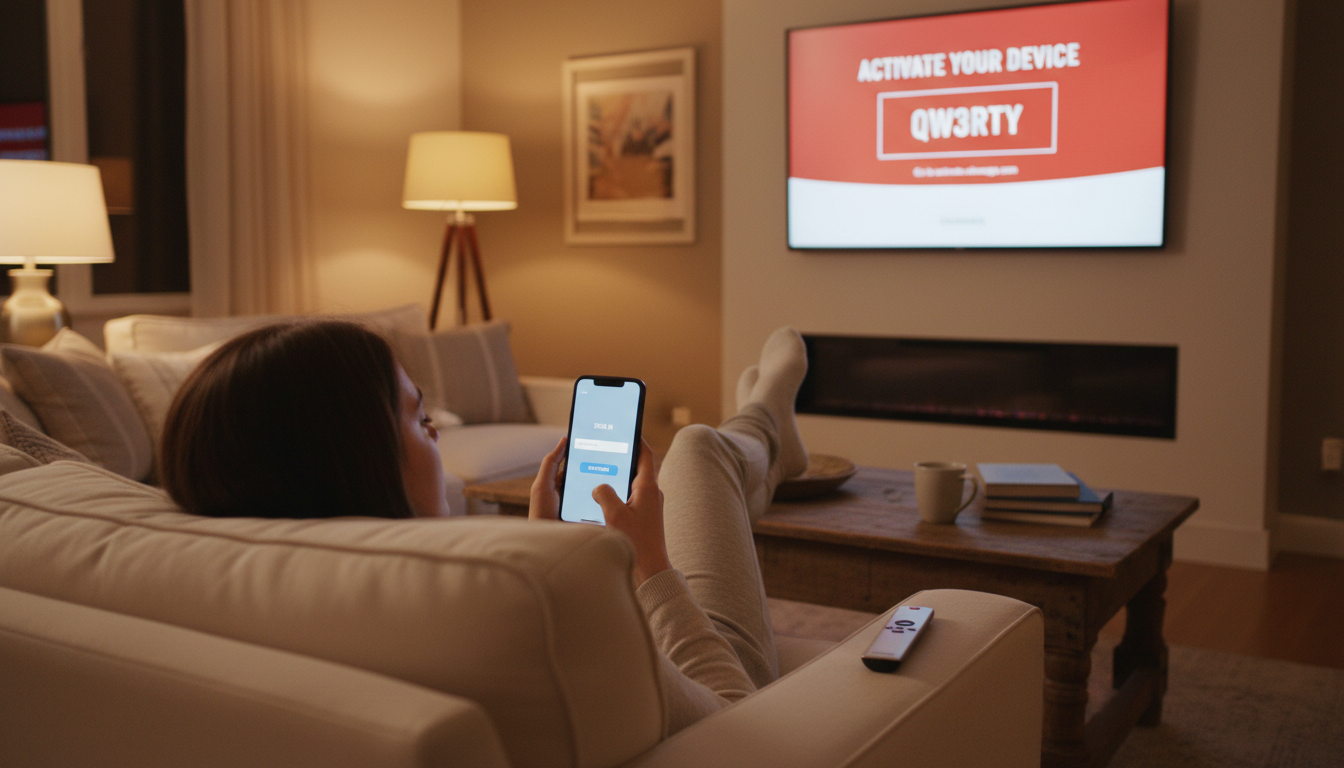
- Look for the QR code and the activation code on your TV screen. Leave this screen open.
- On your phone, scan the QR code, or open a browser and go to yt.be/activate.
- Sign in with your Google account if your browser asks.
- Type the code exactly as it appears on your TV, then select Next or Continue.
- Choose the account or channel you want to use, then select Allow.
Your Fire TV signs in within a few seconds and loads your subscriptions, playlists, and recommendations. Codes expire after a short time, so if yours stops working, go back on the TV to generate a fresh one.
Step 3 (alternative): Sign in with your Fire TV remote
If you don’t have a phone handy, sign in directly on the TV:
- Open the YouTube app and select Sign in.
- Choose the option to sign in with your remote.
- Use the on-screen keyboard to enter your Google account email and password.
- Complete any two-step verification prompt on your phone, then select Allow.
This method works, but typing a long password with arrow keys takes time. YouTube recommends trying the other method if one doesn’t work.
How to activate YouTube TV on Fire TV
YouTube TV is Google’s paid live TV streaming service, not the free YouTube app. It uses a different activation address. According to Google’s YouTube TV help page:
- Install and open the YouTube TV app on your Fire TV.
- Scan the QR code, or go to tv.youtube.com/start on your phone, tablet, or computer.
- Enter the activation code shown on your TV. If it expired, reload the TV screen for a new one.
- Choose the Google account linked to your YouTube TV Base Plan.
- Select Allow to connect the device.
Managing accounts, guest mode, and YouTube Kids
- Add another account: Open the left menu, select your profile picture, go to the Accounts tab, and choose Add account.
- Switch accounts: Pick a profile on the “Who’s Watching?” screen, or use the Accounts tab. You can switch only to accounts you’ve already added.
- Guest mode: Choose Guest to watch without signing in. Guest viewing doesn’t affect anyone’s recommendations, which helps on a shared or vacation rental TV.
- YouTube Kids: Selecting a child’s profile, or a YouTube Kids guest profile, opens YouTube Kids with its filtered content.
YouTube activation code not working? Try these fixes
Google’s troubleshooting advice covers most problems:
- Check the code. Make sure you typed it correctly at yt.be/activate, and use a new code if the old one expired.
- Use the same Wi-Fi network. If you sign in with your phone, connect it to the same Wi-Fi network as your Fire TV and turn off mobile data.
- Restart your Fire TV. Unplug it for 30 seconds, then plug it back in. Rebooting your router and phone can help too.
- Update the app. Go to your Fire TV settings, open Applications, and make sure automatic updates are on, or reinstall YouTube.
- Try the other sign-in method. If the code fails, sign in with your remote, or the other way around.
Some Fire TV devices sit behind the TV, where the metal back panel weakens Wi-Fi. A short High-Definition Multimedia Interface (HDMI) extender cable moves the stick away from the TV and can steady your connection.
Does YouTube work on new Vega OS Fire TV devices?
Yes. Amazon’s newest streaming sticks, including the Fire TV Stick 4K Select and the 2026 Fire TV Stick 4K, run Amazon’s new Vega operating system (OS) instead of Android-based Fire OS. Vega offers fewer apps overall, but YouTube is available. Lon.TV’s review found YouTube ran well with 4K high dynamic range (HDR) playback on the 4K Select. The Fire TV Cube and Fire TV Stick 4K Max still run Fire OS. The sign-in steps above work the same on both systems.
Why Amazon and YouTube once didn’t get along
Amazon and Google feuded for years over streaming hardware. Amazon stopped selling some Google products, and Google pulled YouTube from Fire TV devices in early 2018. The companies reached a deal, and YouTube returned to Fire TV in July 2019. YouTube has worked normally on Fire TV ever since, so you don’t need workarounds, sideloaded apps, or browser tricks.
Best streaming devices for YouTube
Every major streaming platform runs YouTube, so pick a device based on speed, picture formats, and the interface you prefer. Amazon is our main affiliate partner, and it carries all of these:
Compare similar streaming devices on Amazon
| Streaming device | Software | YouTube 4K HDR | Best for | Shop |
|---|---|---|---|---|
| Amazon Fire TV Stick 4K (2026) | Vega OS | Yes (HDR10, HDR10+, and Hybrid Log-Gamma) | Budget Fire TV buyers | Check price |
| Amazon Fire TV Stick 4K Max | Fire OS | Yes | Fast Fire TV performance in a stick | Check price |
| Amazon Fire TV Cube (3rd Gen) | Fire OS | Yes | Hands-free Alexa and cable box control | Check price |
| Roku Streaming Stick 4K | Roku OS | Yes | Simple, neutral menus | Check price |
| Google TV Streamer | Google TV | Yes | Deepest YouTube and Google integration | Check price |
- Fire TV Stick 4K Max: It keeps Android-based Fire OS, so it runs every Fire TV app, and it handles 4K YouTube smoothly. See the Fire TV Stick 4K Max on Amazon.
- Fire TV Cube: Amazon’s fastest box lets you say “Alexa, open YouTube” from across the room. Read our full Fire TV Cube 3rd Gen review for details.
- Google TV Streamer: Google’s own box puts YouTube front and center and signs in with your Google account during setup. See the Google TV Streamer on Amazon.
Avoid cheap, uncertified Android sticks for YouTube. Our G96 TV stick review explains why they pose security risks.
Frequently asked questions
Is YouTube free on Fire TV?
Yes, YouTube is free on Fire TV. The YouTube app is free to download and use with ads. YouTube Premium, which removes ads, costs extra and isn’t included with Amazon Prime.
What is the YouTube activation website?
The YouTube activation website is yt.be/activate, which Google lists as the address for entering your TV code. Typing youtube.com/activate takes you to the same sign-in page. For YouTube TV, use tv.youtube.com/start.
Can I watch YouTube inside the Prime Video app?
No, you can’t watch YouTube inside the Prime Video app. YouTube runs as its own app on Fire TV, next to Prime Video, not inside it. Prime Video channels don’t include YouTube or YouTube TV.
How do I sign out of YouTube on Fire TV?
To sign out of YouTube on Fire TV, open the left menu in the YouTube app, select your profile picture, and go to the Accounts tab to sign out or remove an account. You can also remove TV access from your Google account settings on your phone.
Final thoughts
Activating YouTube on Fire TV takes about two minutes: install or open the app, select Sign in, and enter the code at yt.be/activate, or type your details with the remote. If the code fails, check your Wi-Fi, restart the device, and request a new code. If your current stick feels slow, a newer model makes YouTube much smoother. Check the current Fire TV Stick 4K Max price on Amazon, or compare the Fire TV Cube.